




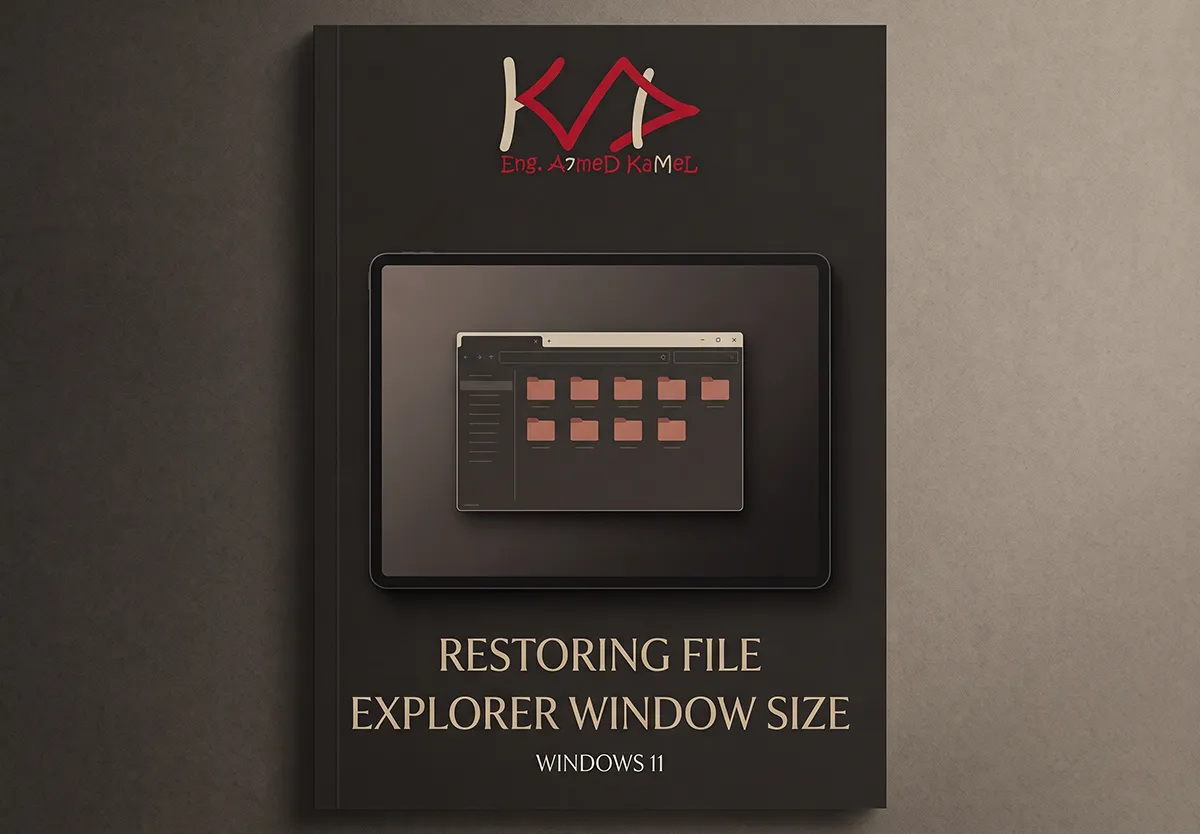

The window opens almost maximized, and Restore Down brings it back to the same rectangle. Editing the numbers once does not last, because closing the window while it is maximized writes those numbers again. From the start, save a normal size, then run a per-user guard that refuses to treat the maximized frame as the restore size.
Symptoms
This is a common Windows 11 behavior, and it is weaker than the way Windows 10 and Windows 7 remembered a window:
- A File Explorer window opens covering almost the whole desktop, and the middle caption button is Restore Down.
- Restore Down leaves the window large, because the saved “normal” rectangle is the work area or the maximized frame.
- If you resize the window and close it while it is not maximized, the next window remembers that size.
- If you maximize it and close it while it is large, the good size is replaced by the large frame. The problem returns even after a manual registry edit.
- After a restart, especially on a laptop with an external display, a new window can open large again.
Why Restore fails, and why the size comes back
File Explorer stores the size and position of the last window you closed. It does not keep a separate size for every folder. For your account, that rectangle lives here:
HKEY_CURRENT_USERSoftwareClassesLocal SettingsSoftwareMicrosoftWindowsShellBagsAllFoldersShell
Each display arrangement has four values:
WinPos1920x1080x96(1).left
WinPos1920x1080x96(1).top
WinPos1920x1080x96(1).right
WinPos1920x1080x96(1).bottom
- Primary screen resolution, such as
1920x1080. Two 1920×1080 monitors still use1920x1080. The name does not become3840x1080. - The DPI number for your scale: 100% =
96, 125% =120, 150% =144, 175% =168, 200% =192. - The number in parentheses, such as
(1)or(2), separates display arrangements Windows has seen. With two monitors the open window uses slot(2). Slot(1)is used when Windows sees one display, including the moment at startup before the external screen is ready.
The four numbers are the restore rectangle in pixels. Restore Down shows that rectangle as stored. When it equals the work area, or the frame of a maximized window, the window stays large.
The dashed frame is the work area. The inner frame is the last normal size Restore should keep.
The first screen’s work area was 0,0 → 1920,1032. That rectangle makes Restore a no-op.
After a maximize on the second screen, Explorer stored a real maximized frame: 1911,3 → 3847,1051, a few pixels outside the panel because of the invisible border.
The last normal size was 155,305 → 1471,870.
One shared value, ShowCmd, sits beside those edges:
| Value | How the next window opens |
|---|---|
1 | At the WinPos rectangle |
3 | Maximized, using WinPos when you click Restore Down |
On Windows 10, closing a maximized window kept the previous restore rectangle. On Windows 11, the current frame is written into WinPos. ShowCmd often stays 1, so the next window opens large immediately and Restore has no smaller rectangle to return to.
Correcting the numbers once therefore fixes only the current open. The next close while maximized writes the large frame again, into the two-monitor slot or into the one-monitor slot at shutdown. Very large MinPos and MaxPos numbers such as 4294967295 are an unused internal position. Leave them alone.
What the complete fix does
The fix has two parts, in this order. The first plants the size you want. The second stops a maximized close from replacing it.
| What you do | What is kept as the restore size |
|---|---|
| Close the window at a normal size | That size becomes the restore size |
| Maximize, then close it while it is large | The large frame is discarded. The last normal size stays |
| Restart the PC | The guard starts again at sign-in and applies the same rule |
The guard is a small program in your account. It watches the WinPos values only. A normal rectangle is remembered. A rectangle that matches the work area or the maximized frame, within about 24 pixels, is replaced with the last normal size a moment later. It also copies that normal size onto other slots for the same resolution and scale, including the one-monitor slot read early in startup.
The guard’s own memory is stored in HKEY_CURRENT_USERSoftwareExplorerRestoreGuard. It does not change ShowCmd, delete folder history, restart explorer.exe, or touch system files. Maximize still works. What it refuses is storing the large frame as the restore size.
What to leave alone
Apply the fix from the start
Follow this order. Closing once at a normal size plants the number the last step will protect.
1. Close one window at the size you want
- Open File Explorer.
- If the window covers the screen, click Restore Down. If it stays large, drag an edge or corner. If an edge is off-screen, press
Alt+Space, choose Size, nudge it with the arrow keys, and press Enter. - Set the width, height, and position. Leave the window restored, not maximized.
- Close it with the Close button, and close any other Explorer windows.
That writes the good size into the slot for the monitors connected right now.
2. Back up the key
- Press
Win+R, typeregedit, and press Enter. - Paste this path into the address bar:
ComputerHKEY_CURRENT_USERSoftwareClassesLocal SettingsSoftwareMicrosoftWindowsShellBagsAllFoldersShell
- Right-click
Shelland choose Export. - Save the file on the desktop as
Explorer-WinPos-backup.reg.
3. Confirm a real size is stored
Open Settings → System → Display. Note the resolution and Scale, and match Scale to the DPI number in the value name:
| Scale | Number in the value name |
|---|---|
| 100% | 96 |
| 125% | 120 |
| 150% | 144 |
| 175% | 168 |
| 200% | 192 |
On a 1920×1080 screen at 100%, look at names that start with WinPos1920x1080x96. This command only reads:
$path = 'HKCU:SoftwareClassesLocal SettingsSoftwareMicrosoftWindowsShellBagsAllFoldersShell'
Get-ItemProperty $path |
  ForEach-Object { $_.PSObject.Properties } |
  Where-Object { $_.Name -like 'WinPos*' -or $_.Name -eq 'ShowCmd' } |
  Sort-Object Name |
  Select-Object Name, Value |
  Format-Table -AutoSize
- A good slot is clearly smaller than the screen. It is usually the size you closed in step 1.
- A bad slot matches the work area, or sticks out past the screen by about 7 to 24 pixels. The second-monitor example is
1911, 3, 3847, 1051.
You do not type the numbers yourself when at least one slot is already a real size. When the guard starts, it copies that size onto any other slot for the same resolution and DPI that still fills the screen.
If every slot for your current scale is full-screen, repeat step 1 and close the window while it is not maximized. If you cannot drag the edges, type a window centered in the work area in Registry Editor and choose base Decimal. For a 1920×1032 work area and a 1200×800 window:
left   = (1920 - 1200) / 2 = 360
top    = (1032 - 800)  / 2 = 116
right  = 360 + 1200        = 1560
bottom = 116 + 800         = 916
Set ShowCmd to 1 so Explorer opens at that size directly.
4. Start the guard that ignores a maximized close
Press Win+R, paste %LOCALAPPDATA%ExplorerRestoreGuard, and press Enter. Create the folder if it is missing. Save two files there with these exact names. In Notepad, choose Save as type “All files” so it does not add .txt.
The first file is ExplorerRestoreGuard.ps1:
# Keeps File Explorer's restore rectangle when a window is closed while maximized.
# Windows 11 writes the maximized frame into WinPos. This watcher puts the last
# normal size back and remembers that size for the next close.
$ErrorActionPreference = 'Stop'

$mutex = New-Object System.Threading.Mutex($false, 'LocalExplorerRestoreGuard')
if (-not $mutex.WaitOne(0)) { exit 0 }

$ShellRel = 'SoftwareClassesLocal SettingsSoftwareMicrosoftWindowsShellBagsAllFoldersShell'
$GuardRel = 'SoftwareExplorerRestoreGuard'
$LogPath = Join-Path $env:LOCALAPPDATA 'ExplorerRestoreGuardguard.log'
$EdgeSlack = 24

Add-Type -AssemblyName System.Windows.Forms
Add-Type -TypeDefinition @"
using System;
using System.Runtime.InteropServices;
using Microsoft.Win32.SafeHandles;
public static class ExplorerGuardNative {
    [DllImport("advapi32.dll", SetLastError = true)]
    public static extern int RegNotifyChangeKeyValue(
        SafeHandle hKey, bool bWatchSubtree, uint dwNotifyFilter, IntPtr hEvent, bool fAsynchronous);
}
"@

function Write-Log([string]$message) {
    $line = '{0:yyyy-MM-dd HH:mm:ss} {1}' -f (Get-Date), $message
    Add-Content -Path $LogPath -Value $line -Encoding UTF8
    if ((Get-Item $LogPath).Length -gt 65536) {
        $tail = Get-Content $LogPath -Tail 80
        Set-Content -Path $LogPath -Value $tail -Encoding UTF8
    }
}

function Convert-ToInt([object]$value) {
    $n = [int64]$value
    if ($n -gt 2147483647) { $n -= 4294967296 }
    return [int]$n
}

function Get-Monitors {
    $list = New-Object System.Collections.Generic.List[object]
    foreach ($screen in [System.Windows.Forms.Screen]::AllScreens) {
        $work = $screen.WorkingArea
        $bounds = $screen.Bounds
        $list.Add([pscustomobject]@{
            WL = $work.Left; WT = $work.Top; WR = $work.Right; WB = $work.Bottom
            ML = $bounds.Left; MT = $bounds.Top; MR = $bounds.Right; MB = $bounds.Bottom
        }) | Out-Null
    }
    return $list
}

function Test-Near([int]$a, [int]$b) {
    return [Math]::Abs($a - $b) -le $EdgeSlack
}

function Test-PoisonedRect([int]$left, [int]$top, [int]$right, [int]$bottom, $monitors) {
    $width = $right - $left
    $height = $bottom - $top
    if ($width -lt 400 -or $height -lt 300) { return $false }
    foreach ($m in $monitors) {
        $workWidth = $m.WR - $m.WL
        $workHeight = $m.WB - $m.WT
        $monWidth = $m.MR - $m.ML
        $monHeight = $m.MB - $m.MT
        $nearWork = (Test-Near $left $m.WL) -and (Test-Near $top $m.WT) -and (Test-Near $right $m.WR) -and (Test-Near $bottom $m.WB)
        $nearMonitor = (Test-Near $left $m.ML) -and (Test-Near $top $m.MT) -and (Test-Near $right $m.MR) -and (Test-Near $bottom $m.MB)
        $coversWork = ($width -ge ($workWidth - $EdgeSlack)) -and ($height -ge ($workHeight - $EdgeSlack)) -and (Test-Near $left $m.WL) -and (Test-Near $top $m.WT)
        $coversMonitor = ($width -ge ($monWidth - $EdgeSlack)) -and ($height -ge ($monHeight - $EdgeSlack)) -and (Test-Near $left $m.ML) -and ($top -le ($m.MT + $EdgeSlack))
        if ($nearWork -or $nearMonitor -or $coversWork -or $coversMonitor) { return $true }
    }
    return $false
}

function Get-GuardKey {
    return [Microsoft.Win32.Registry]::CurrentUser.CreateSubKey($GuardRel)
}

function Read-Groups {
    $shell = [Microsoft.Win32.Registry]::CurrentUser.OpenSubKey($ShellRel, $true)
    $groups = @{}
    foreach ($name in $shell.GetValueNames()) {
        if ($name -notmatch '^WinPos(.+).(left|top|right|bottom)$') { continue }
        $id = $Matches[1]
        $edge = $Matches[2]
        if (-not $groups.ContainsKey($id)) {
            $groups[$id] = @{ left = $null; top = $null; right = $null; bottom = $null }
        }
        $groups[$id][$edge] = Convert-ToInt $shell.GetValue($name)
    }
    return @{ Shell = $shell; Groups = $groups }
}

function Save-Good([string]$id, [int]$left, [int]$top, [int]$right, [int]$bottom) {
    $guard = Get-GuardKey
    $guard.SetValue("$id.left", $left, 'DWord')
    $guard.SetValue("$id.top", $top, 'DWord')
    $guard.SetValue("$id.right", $right, 'DWord')
    $guard.SetValue("$id.bottom", $bottom, 'DWord')
}

function Get-SavedGood([string]$id) {
    $guard = [Microsoft.Win32.Registry]::CurrentUser.OpenSubKey($GuardRel, $false)
    if ($null -eq $guard) { return $null }
    $edges = @('left', 'top', 'right', 'bottom')
    $rect = @{}
    foreach ($edge in $edges) {
        $raw = $guard.GetValue("$id.$edge")
        if ($null -eq $raw) { return $null }
        $rect[$edge] = Convert-ToInt $raw
    }
    return $rect
}

function Get-SiblingGood([string]$id, $groups, $monitors) {
    $prefix = ($id -replace '(d+)$', '')
    foreach ($other in ($groups.Keys | Sort-Object)) {
        if ($other -eq $id) { continue }
        if (-not $other.StartsWith($prefix)) { continue }
        $g = $groups[$other]
        if ($null -eq $g.left) { continue }
        if (Test-PoisonedRect $g.left $g.top $g.right $g.bottom $monitors) { continue }
        return $g
    }
    return $null
}

function Write-Rect($shell, [string]$id, $rect) {
    $shell.SetValue("WinPos$id.left", [int]$rect.left, 'DWord')
    $shell.SetValue("WinPos$id.top", [int]$rect.top, 'DWord')
    $shell.SetValue("WinPos$id.right", [int]$rect.right, 'DWord')
    $shell.SetValue("WinPos$id.bottom", [int]$rect.bottom, 'DWord')
}

function Repair-Positions {
    $monitors = @(Get-Monitors)
    if ($monitors.Count -eq 0) { return }
    $state = Read-Groups
    $shell = $state.Shell
    $groups = $state.Groups

    foreach ($id in @($groups.Keys)) {
        $g = $groups[$id]
        if ($null -eq $g.left -or $null -eq $g.top -or $null -eq $g.right -or $null -eq $g.bottom) { continue }
        if (Test-PoisonedRect $g.left $g.top $g.right $g.bottom $monitors) { continue }
        Save-Good $id $g.left $g.top $g.right $g.bottom
    }

    foreach ($id in @($groups.Keys)) {
        $g = $groups[$id]
        if ($null -eq $g.left -or $null -eq $g.top -or $null -eq $g.right -or $null -eq $g.bottom) { continue }
        if (-not (Test-PoisonedRect $g.left $g.top $g.right $g.bottom $monitors)) { continue }

        $good = Get-SavedGood $id
        if ($null -ne $good -and (Test-PoisonedRect $good.left $good.top $good.right $good.bottom $monitors)) {
            $good = $null
        }
        if ($null -eq $good) { $good = Get-SiblingGood $id $groups $monitors }
        if ($null -eq $good) {
            $work = $monitors[0]
            $width = 1200
            $height = 800
            $workWidth = $work.WR - $work.WL
            $workHeight = $work.WB - $work.WT
            if ($width -gt $workWidth - 80) { $width = $workWidth - 80 }
            if ($height -gt $workHeight - 80) { $height = $workHeight - 80 }
            $left = $work.WL + [int](($workWidth - $width) / 2)
            $top = $work.WT + [int](($workHeight - $height) / 2)
            $good = @{ left = $left; top = $top; right = ($left + $width); bottom = ($top + $height) }
        }

        Write-Rect $shell $id $good
        Save-Good $id $good.left $good.top $good.right $good.bottom
        Write-Log ("restored WinPos{0} from {1},{2},{3},{4} to {5},{6},{7},{8}" -f $id, $g.left, $g.top, $g.right, $g.bottom, $good.left, $good.top, $good.right, $good.bottom)
    }
}

Write-Log 'started'
Repair-Positions

$notifyEvent = New-Object System.Threading.AutoResetEvent($false)
$shellKey = [Microsoft.Win32.Registry]::CurrentUser.OpenSubKey($ShellRel, $false)
$useNotify = $false
try {
    $hr = [ExplorerGuardNative]::RegNotifyChangeKeyValue($shellKey.Handle, $false, 4, $notifyEvent.SafeWaitHandle.DangerousGetHandle(), $true)
    $useNotify = ($hr -eq 0)
    Write-Log ("notify registration {0}" -f $hr)
} catch {
    Write-Log ("notify unavailable: {0}" -f $_.Exception.Message)
}

while ($true) {
    if ($useNotify) {
        $signaled = $notifyEvent.WaitOne(5000)
        if ($signaled) { Start-Sleep -Milliseconds 450 }
        $hr = [ExplorerGuardNative]::RegNotifyChangeKeyValue($shellKey.Handle, $false, 4, $notifyEvent.SafeWaitHandle.DangerousGetHandle(), $true)
        if ($hr -ne 0) { $useNotify = $false }
    } else {
        Start-Sleep -Seconds 1
    }
    try {
        Repair-Positions
    } catch {
        Write-Log ("repair error: {0}" -f $_.Exception.Message)
    }
}
The second file, in the same folder, is start.vbs. It starts the guard without a console window:
Set shell = CreateObject("Wscript.Shell")
script = CreateObject("Scripting.FileSystemObject").GetParentFolderName(WScript.ScriptFullName) & "ExplorerRestoreGuard.ps1"
shell.Run "powershell.exe -NoProfile -ExecutionPolicy Bypass -WindowStyle Hidden -File """ & script & """", 0, False
Then, from PowerShell, with Explorer windows closed, install it for sign-in and start it now:
$dir = Join-Path $env:LOCALAPPDATA 'ExplorerRestoreGuard'
$startup = Join-Path $env:APPDATA 'MicrosoftWindowsStart MenuProgramsStartupExplorerRestoreGuard.vbs'
Copy-Item (Join-Path $dir 'start.vbs') $startup -Force
Start-Process wscript.exe -ArgumentList '//B', (Join-Path $dir 'start.vbs')
Start-Sleep -Seconds 2
Get-Content (Join-Path $dir 'guard.log') -Tail 20
A started line means the guard is running. A restored WinPos... line means it found a full-screen slot and put the last normal size back. notify registration 0 means it is waiting for Explorer’s next write.
Check both behaviors
- Open Explorer, change the size a little while it is not maximized, and close it. The next window opens at that new size, because a normal close is kept.
- Maximize the window and close it while it is large. Within about a second the
WinPosnumbers return to the previous normal size, and a new window opens at that size.guard.lognames the large edges that were rejected and the edges that were restored. - Restart the PC and open Explorer. The guard starts at sign-in, and the normal size is still the restore size, including the one-monitor slot.
x120 or x144. Close one window at the size you want on the new scale, and the guard covers the rest.
Turn the guard off and undo
- Press
Win+R, pasteshell:startup, and deleteExplorerRestoreGuard.vbs. - In Task Manager, end the
powershell.exeprocess whose command line containsExplorerRestoreGuard.ps1. - To clear the guard’s memory, delete
HKEY_CURRENT_USERSoftwareExplorerRestoreGuardand the folder%LOCALAPPDATA%ExplorerRestoreGuard. - To put the window numbers back as they were before any edit, double-click
Explorer-WinPos-backup.regand confirm.
WinPos rectangle. Windows 11 replaces it with the maximized frame on close. Close Explorer once at the size you want, then leave the guard in your account to put that size back whenever the full-screen frame is written. A maximized close is not counted as the restore size.